PhantomGuard Pro – Installation Guide
This guide explains how to manually install and activate the PhantomGuard Pro WordPress plugin.
PhantomGuard Pro is distributed outside the WordPress.org plugin repository and must be installed manually.
Requirements
Before installing PhantomGuard Pro, ensure the following:
- WordPress 6.8.2 or newer
- Administrator access to your WordPress dashboard
- A valid PhantomGuard Pro license key
Step 1 — Download the Plugin
After purchasing PhantomGuard Pro, download the plugin package from our website.
Link:
https://data.phantomguard.io/phantom-guard-pro.zip
Important: Do not extract the ZIP file before uploading it to WordPress.
Step 2 — Upload the Plugin to WordPress
- Log in to your WordPress Admin Dashboard
- Navigate to:
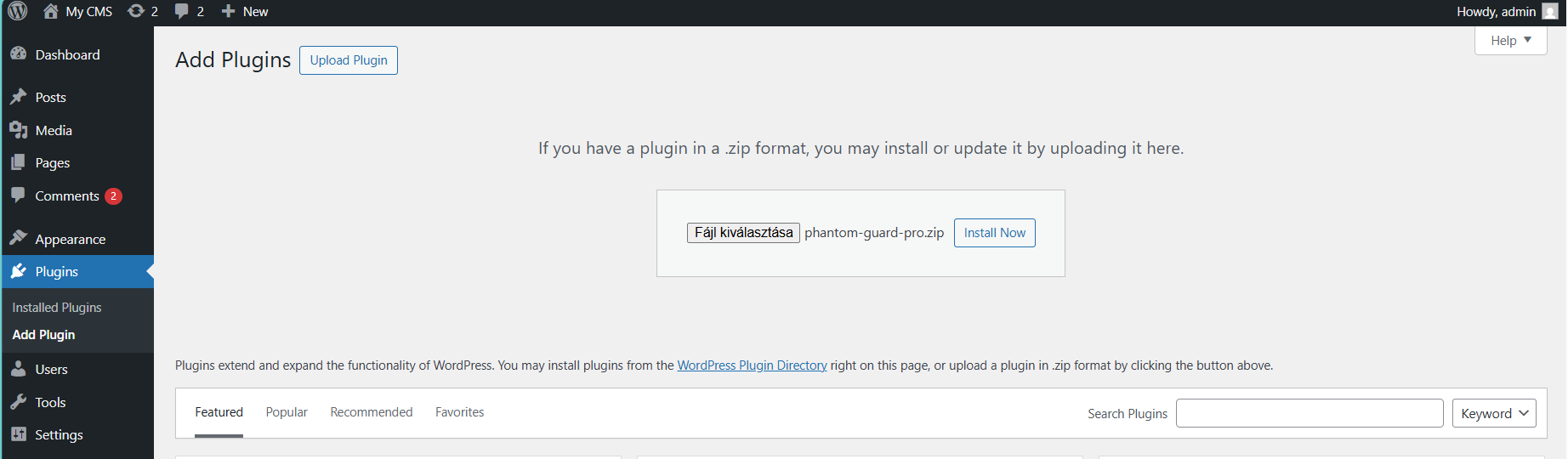
Plugins → Add New
- Click the Upload Plugin button at the top of the page
- Select the file:
phantom-guard-pro.zip
- Click Activate Plugin
Important: Please also deactivate/delete the Free version of the PhantomGuard plugin.
Step 3 — Activate Your License
After activating the plugin:
- Navigate to:
PhantomGuard → Settings
- Enter your PhantomGuard Pro License Key
- Click Save License
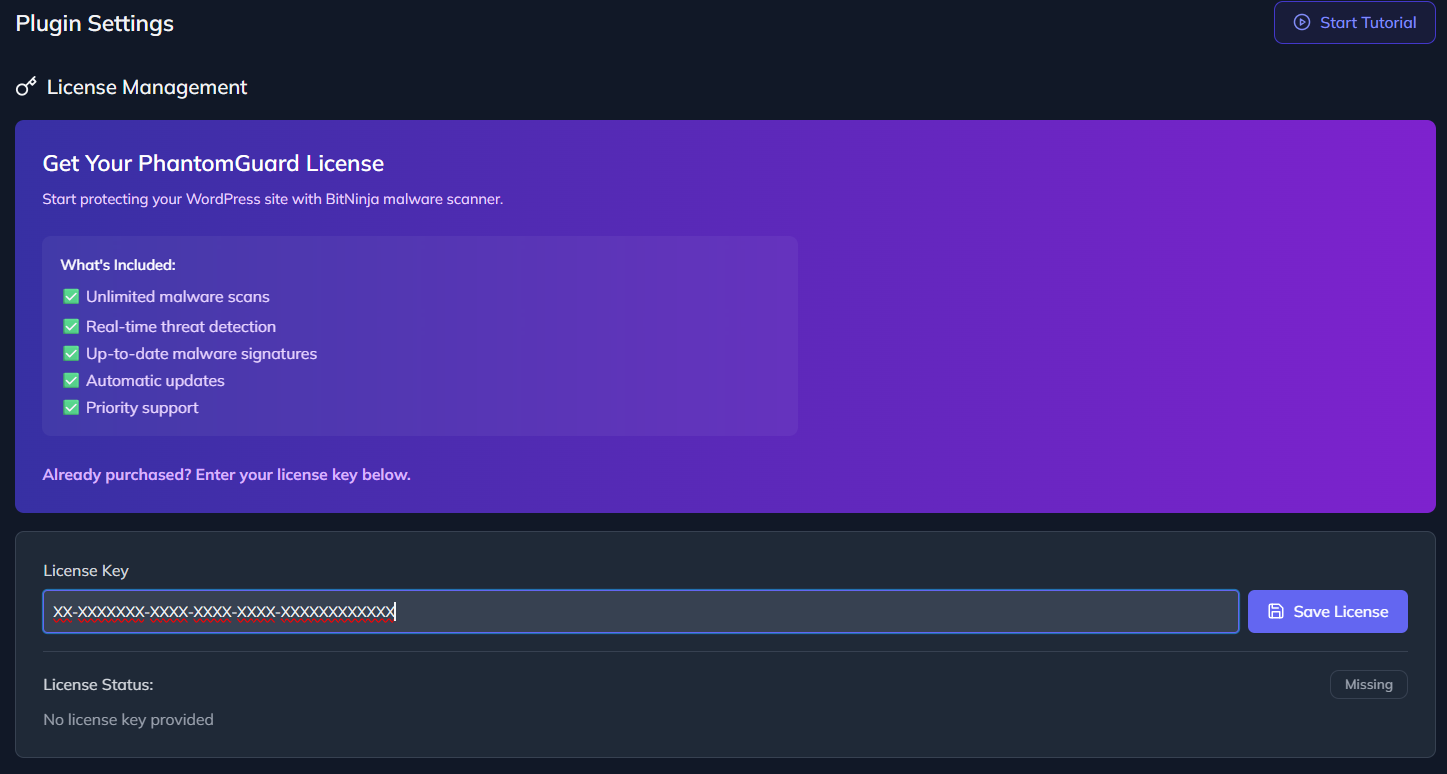
When the license is validated, all PhantomGuard Pro features will be enabled.
Verifying Installation
To confirm the plugin is active:
- Go to:
PhantomGuard → Settings
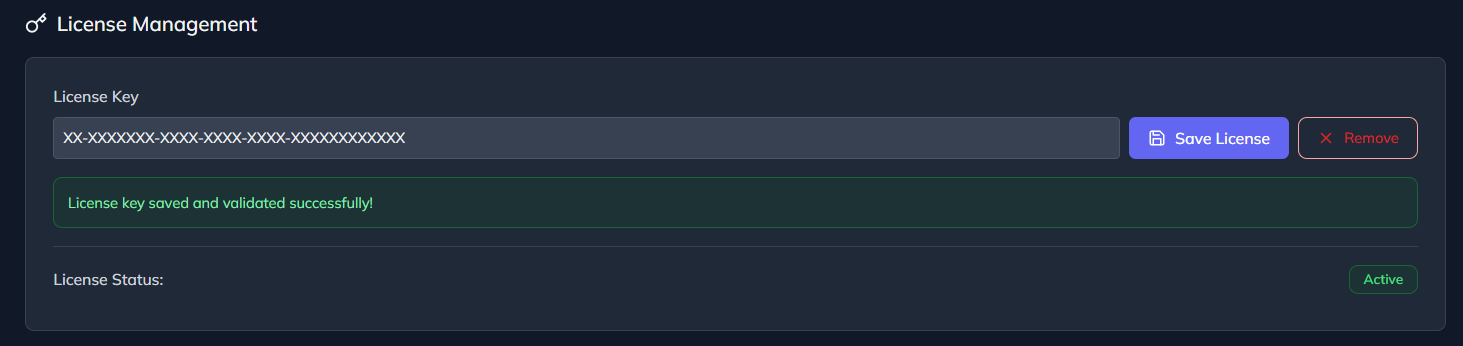
- Check the License Status
Expected status:
License Status: Active
Updating PhantomGuard Pro
When updates are available:
- Go to:
Plugins → Installed Plugins
- Locate PhantomGuard Pro
- Click Update Now
Updates require an active license.
Troubleshooting
Plugin Upload Failed
If WordPress fails to upload the plugin, your server upload limit may be too low.
Check your PHP configuration:
upload_max_filesize
post_max_size
License Activation Issues
If your license does not activate:
- Verify the license key was entered correctly
- Ensure your subscription is active
- Confirm your site can reach our licensing servers
Support
If you encounter issues installing or activating PhantomGuard Pro, please contact our support team.